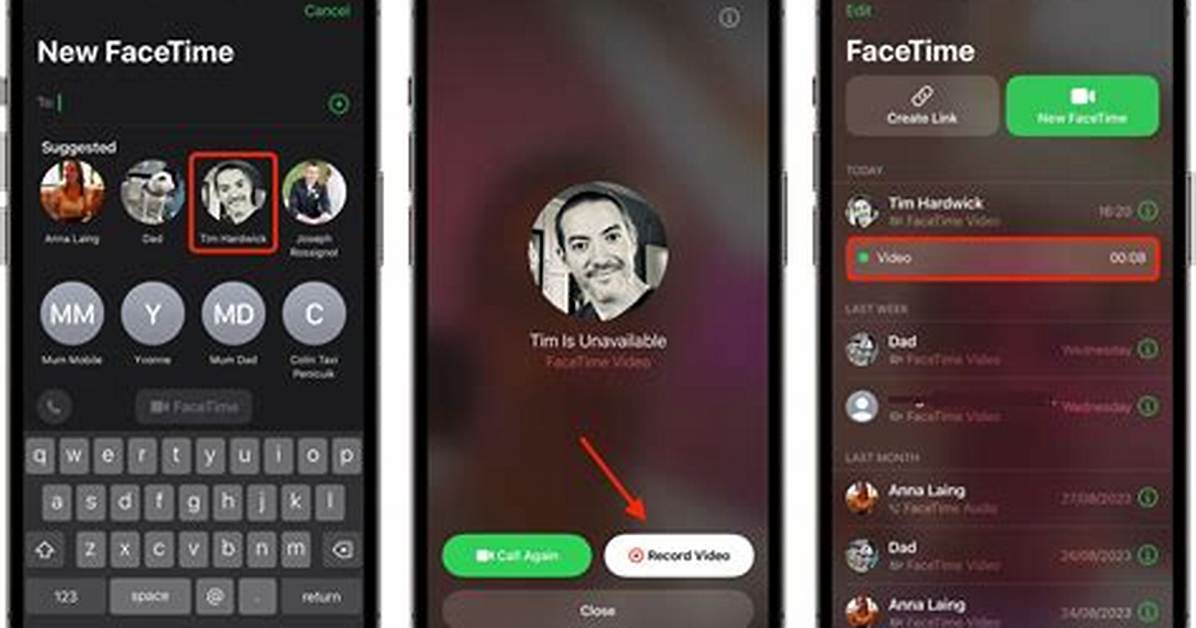
In today’s digital age, we often find ourselves relying on video calls to connect with friends, family, and colleagues. One of the most popular platforms for video communication is FaceTime, an application exclusive to Apple users. But what happens when you want to save a memorable conversation or an important meeting? Can you record FaceTime? The answer is not as straightforward as you might think. Recording a FaceTime call may be necessary for various reasons, such as preserving special moments with loved ones, keeping a record of important discussions, or creating content for social media. As technology continues to evolve, it's essential to understand the capabilities and limitations of the tools we use.
In this article, we will explore the avenues available for recording FaceTime calls, the legalities surrounding recording conversations, and the best practices to ensure you capture all the critical moments. We'll also address common questions users have when it comes to recording their FaceTime sessions. So, if you've ever wondered, "Can you record FaceTime?" keep reading as we uncover everything you need to know.
Recording FaceTime can be a beneficial skill, but it’s crucial to approach it with caution and respect for privacy. As we delve deeper into the topic, we’ll provide methods, tips, and expert recommendations to help you navigate the world of FaceTime recording safely and legally.
Can You Record FaceTime on iPhone or iPad?
Yes, you can record FaceTime calls on your iPhone or iPad! Apple has made it relatively simple to capture your conversations using the built-in screen recording feature. Here’s how to do it:
- Open the Settings app on your device.
- Tap on Control Center, then Customize Controls.
- Add Screen Recording to your Control Center.
- Swipe down from the upper-right corner (or up from the bottom on older devices) to access Control Center.
- Press the Screen Recording button to start recording.
- Make your FaceTime call, and stop the recording when you’re done.
Can You Record FaceTime on Mac?
Absolutely! Recording FaceTime calls on a Mac is equally as straightforward. You can use the QuickTime Player application:
- Open QuickTime Player on your Mac.
- Select File from the menu, then click on New Screen Recording.
- Choose to record the entire screen or a specific portion.
- Start your FaceTime call and then click the record button.
- Stop the recording when you're finished.
What Are the Legal Implications of Recording FaceTime?
Before you hit that record button, it’s essential to understand the legal implications of recording conversations. In many jurisdictions, you need the consent of all parties involved in the conversation to record it legally. Here are some points to consider:
- Check the laws in your country or state regarding recording conversations.
- Inform your conversation partner that you intend to record.
- Obtain explicit consent before starting the recording.
What Are the Best Practices for Recording FaceTime?
To ensure a smooth recording experience, consider these best practices:
- Test your recording setup before the actual call.
- Ensure you have enough storage space on your device.
- Choose a quiet location to minimize background noise.
- Communicate with your call partner about the recording to avoid surprises.
Can You Edit FaceTime Recordings?
Yes! After recording your FaceTime call, you may want to edit the video. You can use various editing software or apps to trim unnecessary parts, add effects, or even enhance audio quality. Popular editing tools include:
- iMovie (available on iOS and macOS)
- Adobe Premiere Pro
- Final Cut Pro
What Should You Do If You Encounter Problems Recording FaceTime?
If you run into issues while trying to record your FaceTime calls, here are some troubleshooting tips:
- Ensure your device is updated to the latest iOS or macOS version.
- Check your storage space to make sure you have enough available.
- Restart your device to resolve any temporary glitches.

